
Quick start
This page walks through the editor with one of the bundled examples. You need the editor: the
desktop app, or pnpm dev from a checkout.
-
Open an example. Choose ☰ Menu → Examples… and pick one. The Knight is a good start: a character with IK legs, a state machine, sounds and a script.
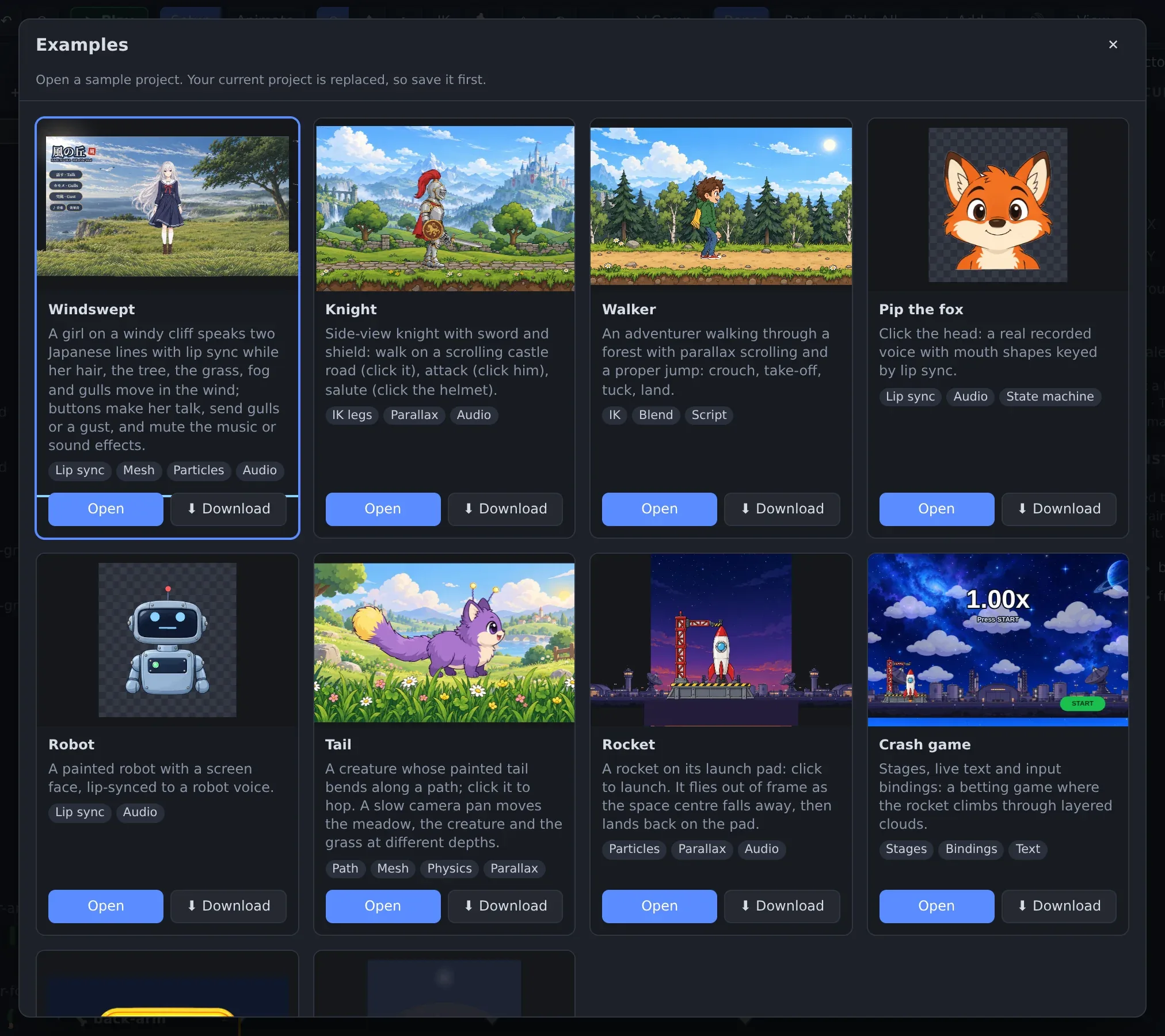
Menu → Examples… Each card says what the example shows. Download saves it as one self-contained .obone file. -
Play it. Press ▶ Play (or P). Play mode runs the file the way it will ship: the state machine, its inputs, scripts, sound and pointer listeners. Click the knight, press the input buttons in the Inputs panel and watch the log.
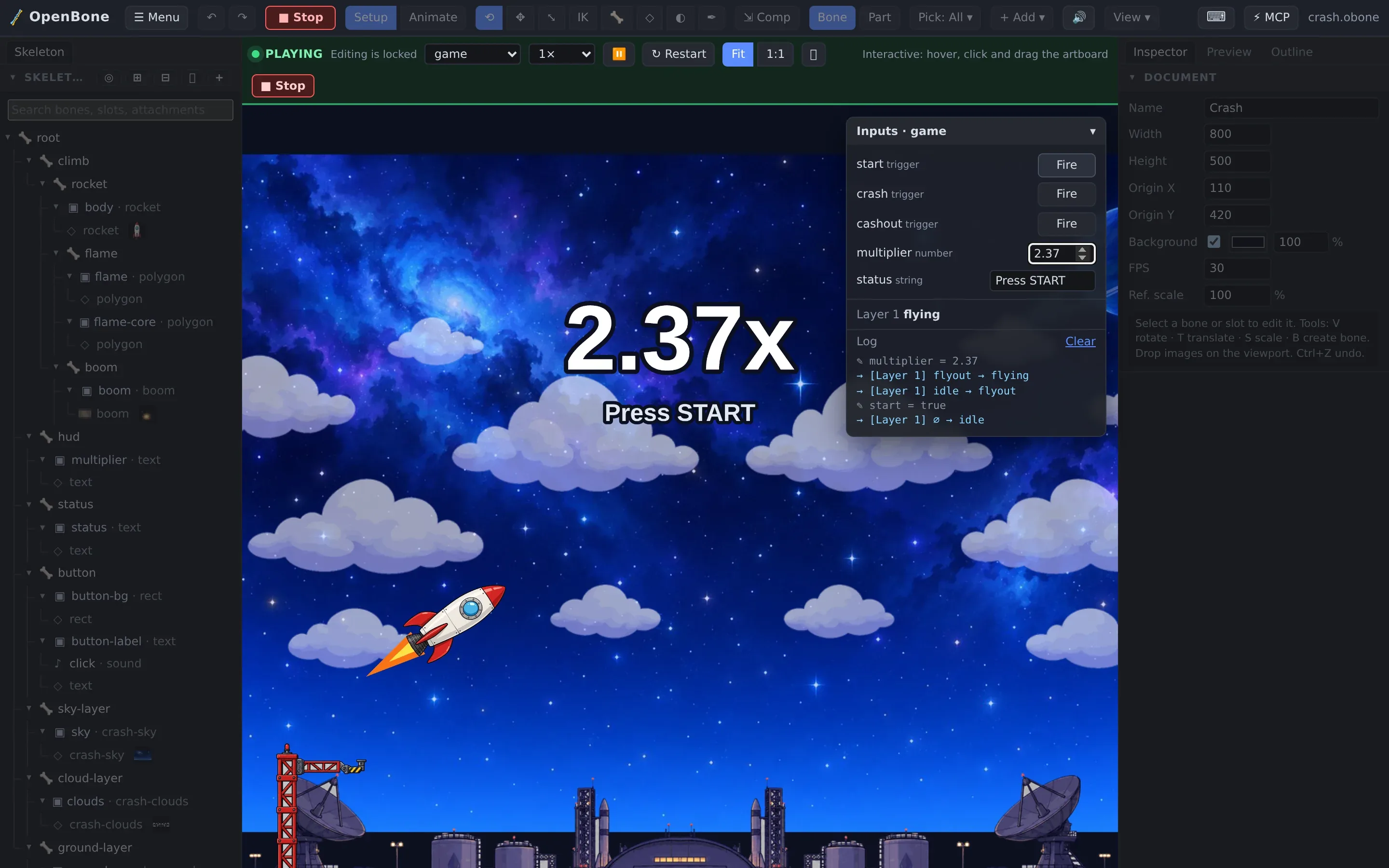
Play mode: inputs on the right, the active state and a log of every state change, event and sound. -
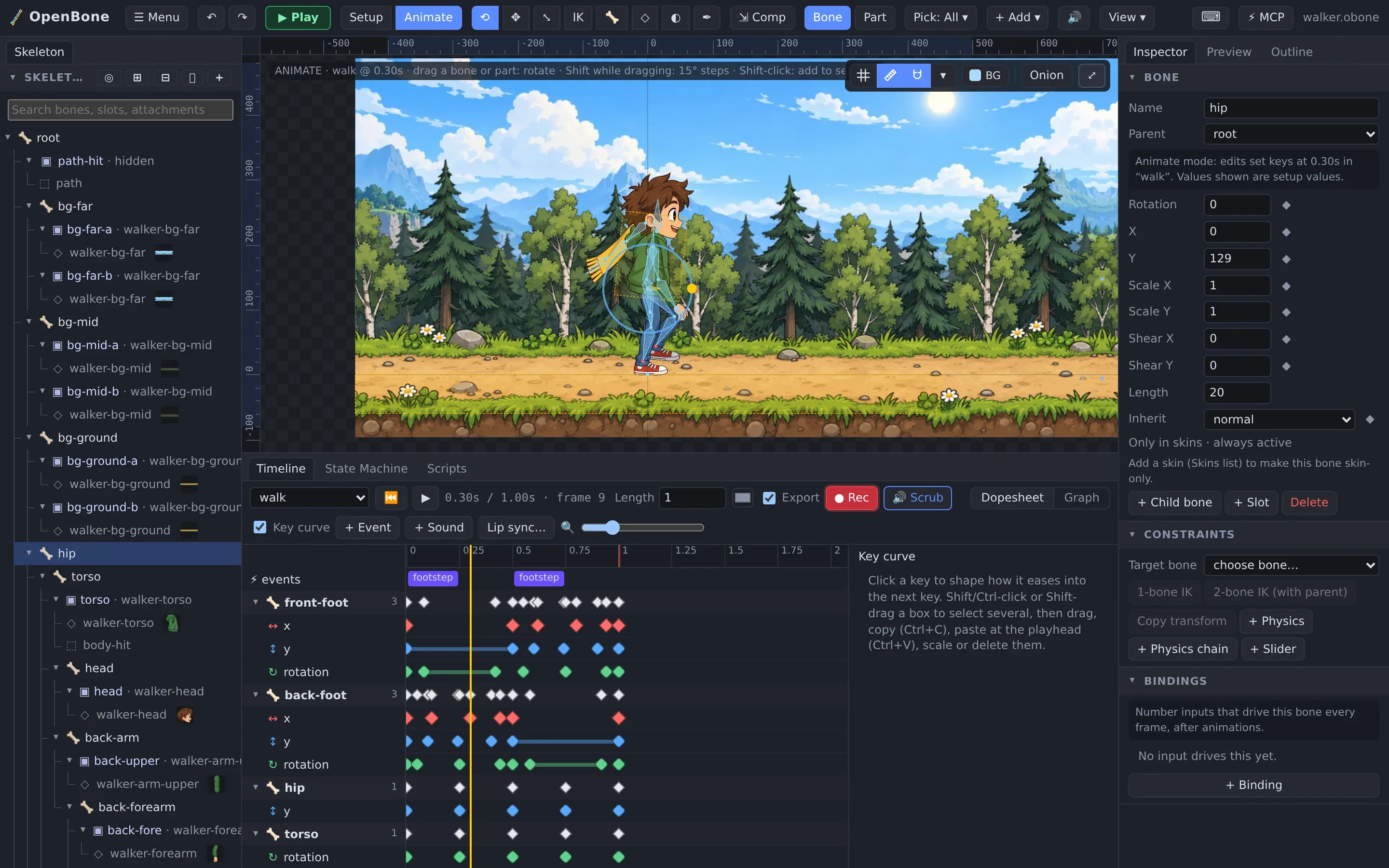
Look at the animations. Press ■ Stop, switch to Animate (`) and pick an animation in the timeline’s list. Press Space to play it. Click a bone in the viewport or the skeleton tree: the Inspector shows its properties, and the dopesheet shows its keys.
-
Change something. With ● Rec on, drag a bone in the viewport: a key appears at the playhead. Drag the key in the dopesheet to retime it. Every change can be undone with Ctrl+Z (⌘+Z on macOS).
-
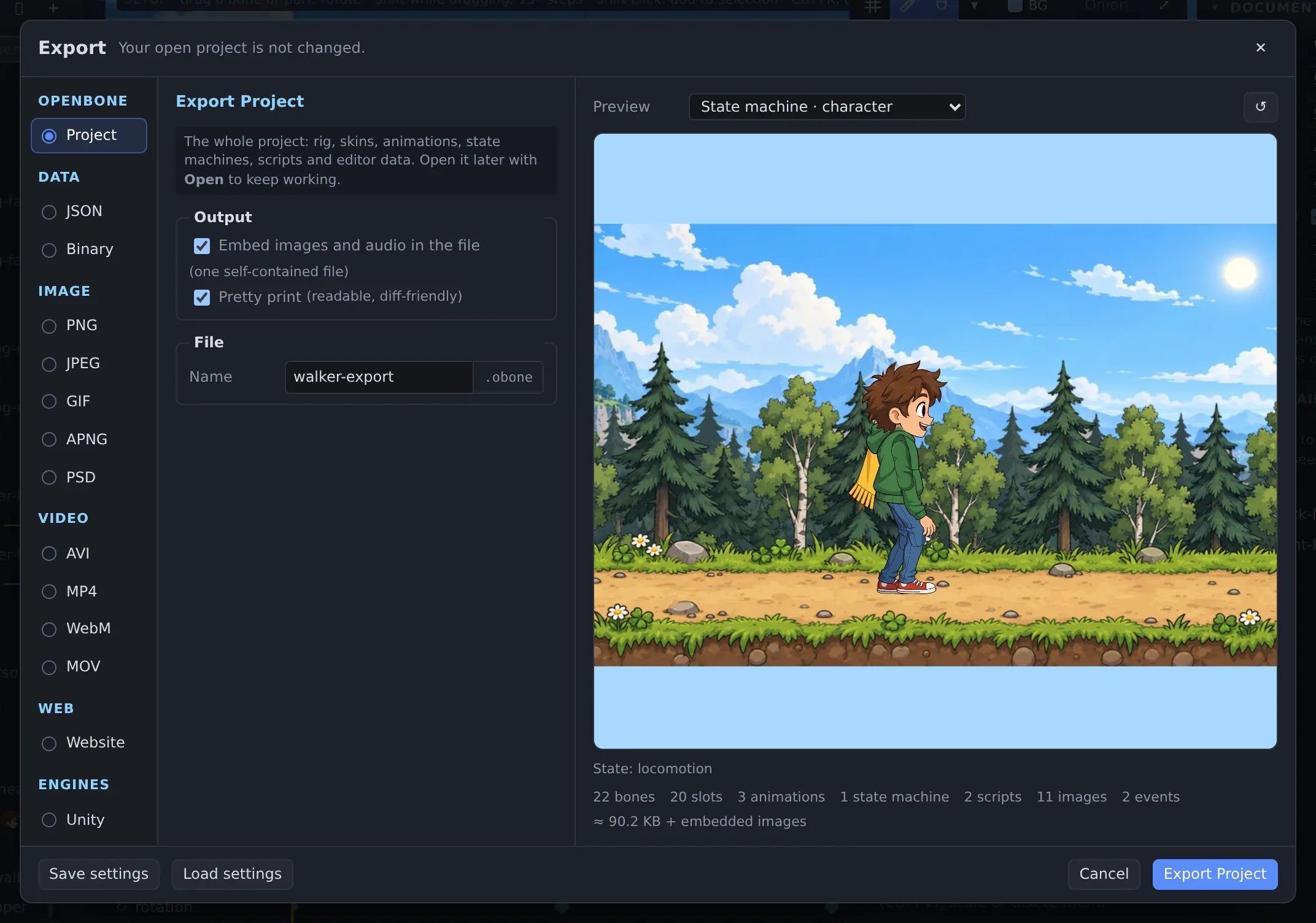
Export it. Choose ☰ Menu → Export… (Ctrl+E). Pick a format on the left: the project, runtime data for an engine, images, video with sound, or a web page. The preview on the right is what you will get.
Find any command
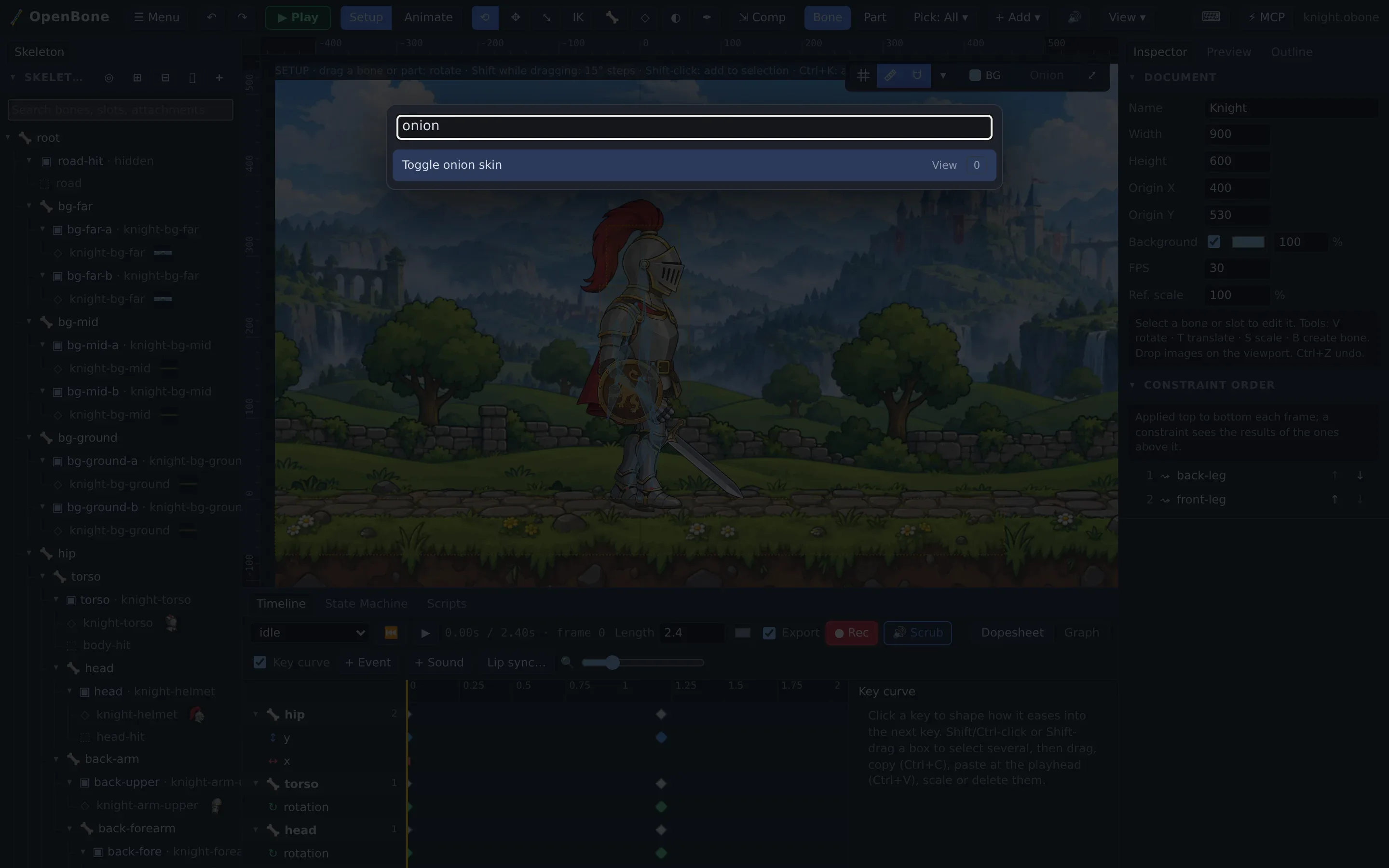
Section titled “Find any command”Press Ctrl+K (⌘+K) for the command palette and type what you want. Every action is there with its shortcut, and the shortcuts can be changed under ☰ Menu → Keyboard shortcuts.
- Tour the editor to learn the panels, modes and views.
- Rig your first character.
- Try every example live in your browser.
OpenBone is MIT licensed and made by UXCentury. The example art, voices and sounds are credited in the repository.