
State machines and listeners
A state machine decides which animations play, from inputs your app sets and from pointer listeners on the artwork. It runs the same way in the editor’s Play mode, in the web player and in every native runtime, so the file carries its own interactivity.

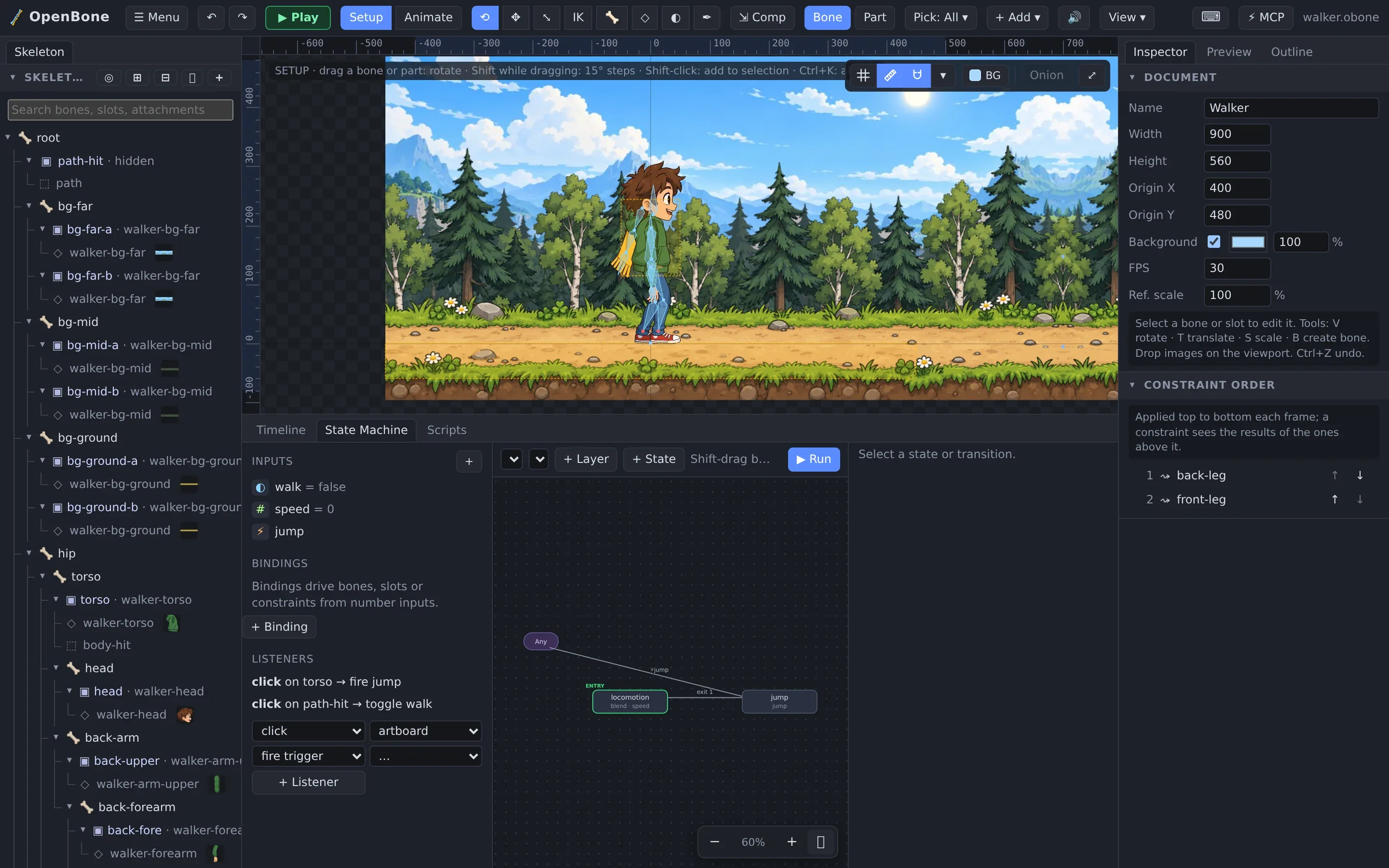
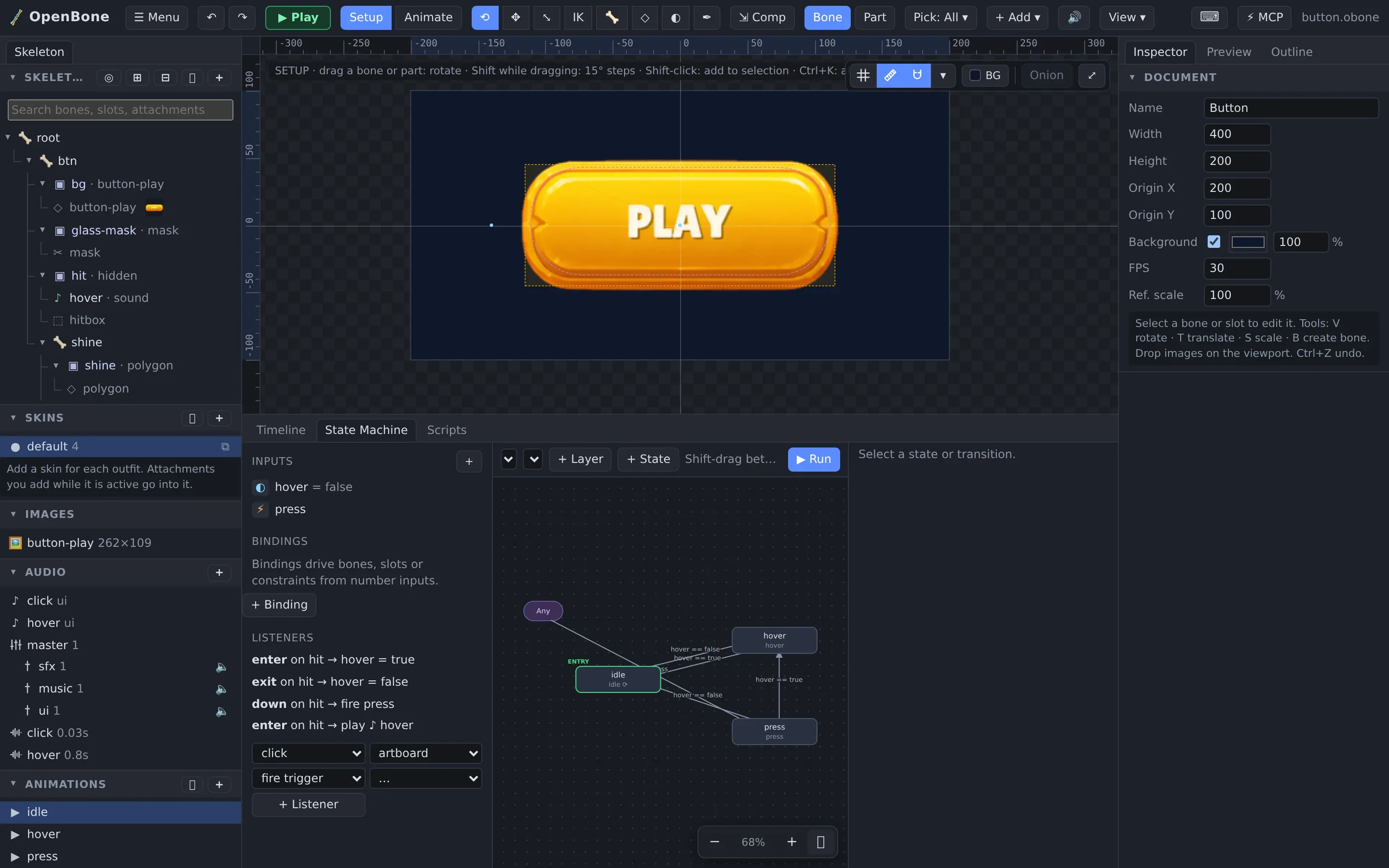
The button above is a state machine with two inputs (hover, press), three states and three listeners. Hover it and
click it.
The parts
Section titled “The parts”| Part | What it does |
|---|---|
| Inputs | bool, number, string and trigger values your code (or a listener) sets |
| Layers | Independent graphs that run at the same time (a character on layer 1, a camera pan on layer 2) |
| States | Play an animation, or a 1D blend of animations driven by a number input |
| Transitions | From one state (or Any) to another when conditions on inputs hold, with a cross-fade, an optional exit time, and “on complete” hand-offs |
| Listeners | Pointer events (down, up, enter, exit, move, click) on a slot’s hit box that set inputs, fire triggers, report events, play sounds, start particles or run scripts |
| Bindings | A number input drives a bone, slot or constraint property every frame |
Build one
Section titled “Build one”- Open the State Machine panel (bottom dock) and press + in the left panel’s State machines list.
- Add inputs with the + at the top of the inputs list.
- Add states with + State, pick each state’s animation in the Inspector, and Shift-drag from one state to another to add a transition. Select the transition to set its conditions, fade time and exit time.
- Add hit boxes to the slots people should click (+ Hit box in the slot’s Inspector, or the Pen tool for a custom outline), then add listeners: pick the event, the slot and the action.
- Press ▶ Run in the panel (or ▶ Play in the toolbar) to try it.
Try it in Play mode
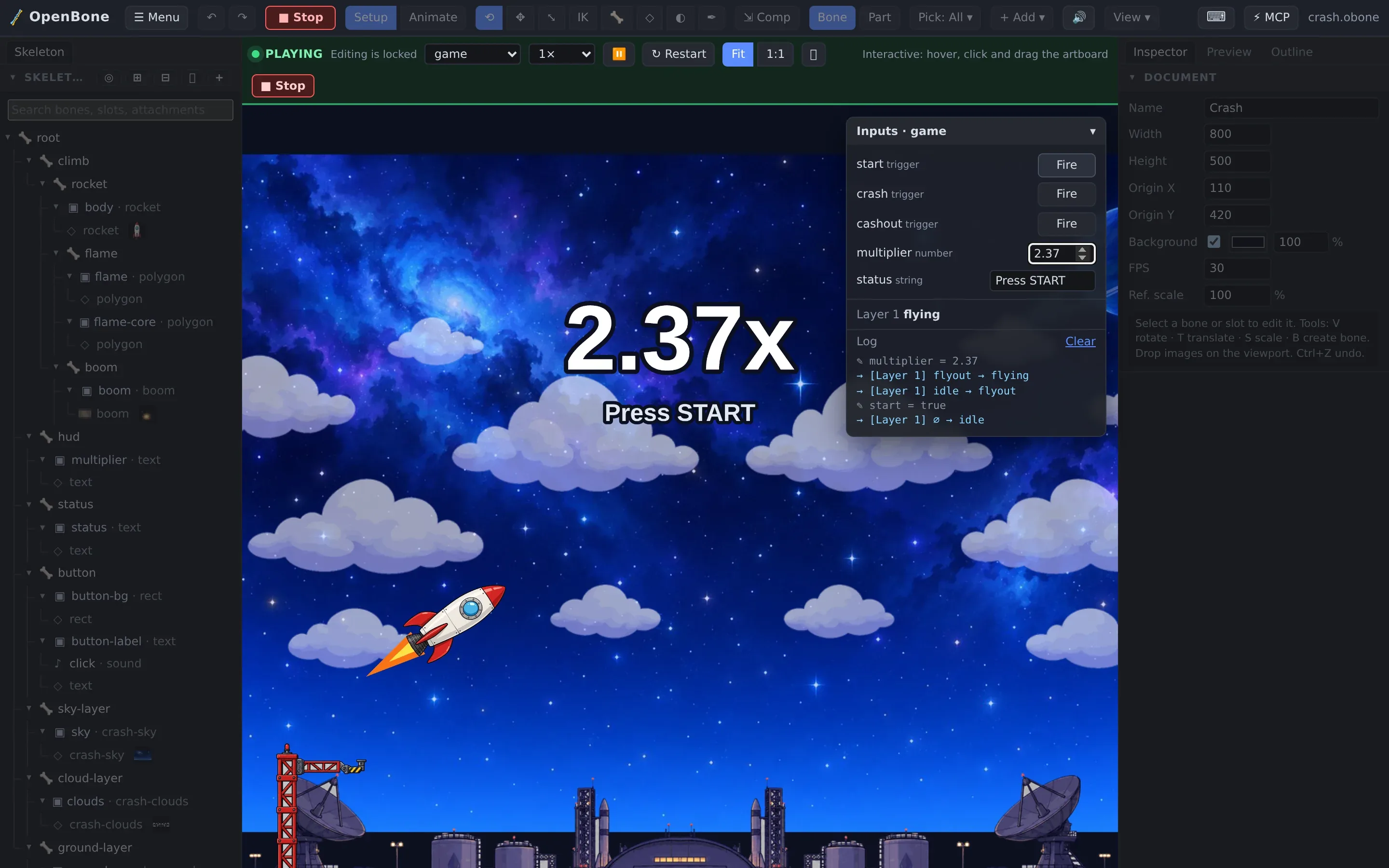
Section titled “Try it in Play mode”▶ Play runs the machine with pointer interaction, scripts and sound. The Inputs panel shows every input; fire triggers and edit values, and read the log of state changes, events and audio commands.
Live text and bindings
Section titled “Live text and bindings”Text attachments can be templates bound to inputs: {multiplier:0.00}x shows the number input with two decimals.
Bindings (the + Binding button on a bone, slot or constraint) map a number input onto a property, so a host app
can drive a gauge, a dial or a parallax camera directly.

Press start, then drag multiplier: the text and the background follow the input.
Scripts
Section titled “Scripts”When states and bindings are not enough, a document can carry scripts: JavaScript run in a sandbox (QuickJS, with a
memory cap and a per-call deadline) through an ob API with onStart, onUpdate, onEvent and onPointer. Walker
uses one to ease its blend input:
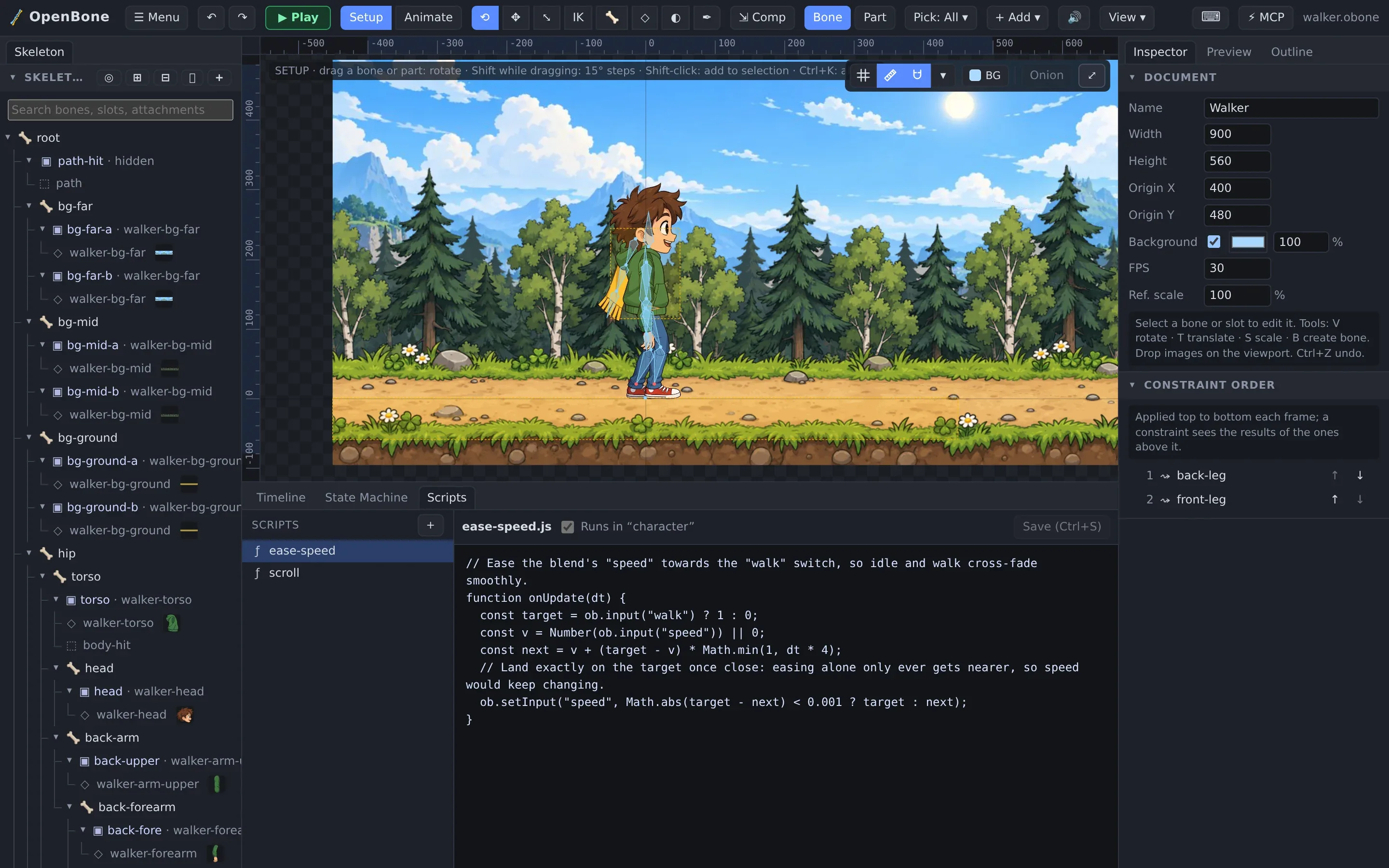
Scripts run in every runtime that has a sandbox: the web player, C/C++ (QuickJS), C# (Jint), Java (QuickJS) and Swift/Flutter (through the C runtime).
OpenBone is MIT licensed and made by UXCentury. The example art, voices and sounds are credited in the repository.