Audio, mixer and lip sync
Sound is part of the file. A .obone document lists its sounds (WAV, MP3 or OGG, embedded or by path), its
buses, and what plays them: audio keys in animations, events, state hooks and listener actions. The runtimes emit
play, stop and fade commands, which the web player, the editor and the native engine integrations play.
Pip the fox: press ▶ Play with sound, then click the head to hear the voice that drives the mouth.
Add sounds
Section titled “Add sounds”- + Add → Audio (or drop WAV/MP3/OGG files on the viewport). Each file becomes an audio asset and a sound.
- Select the sound in the left panel’s Audio list. Set its Bus, Volume, Rate, Loop and Fade in/out, and preview it with ▶.
- Play it from somewhere:
- an audio key: + Sound in the timeline puts it at the playhead, shown with its waveform;
- an event: Play on events in the sound’s Inspector links it to an event, so every time that event fires (from a key, a listener or a script) the sound plays;
- a state: a state’s Inspector can play a sound on enter, and stop looping sounds on exit;
- a listener: the play sound action.
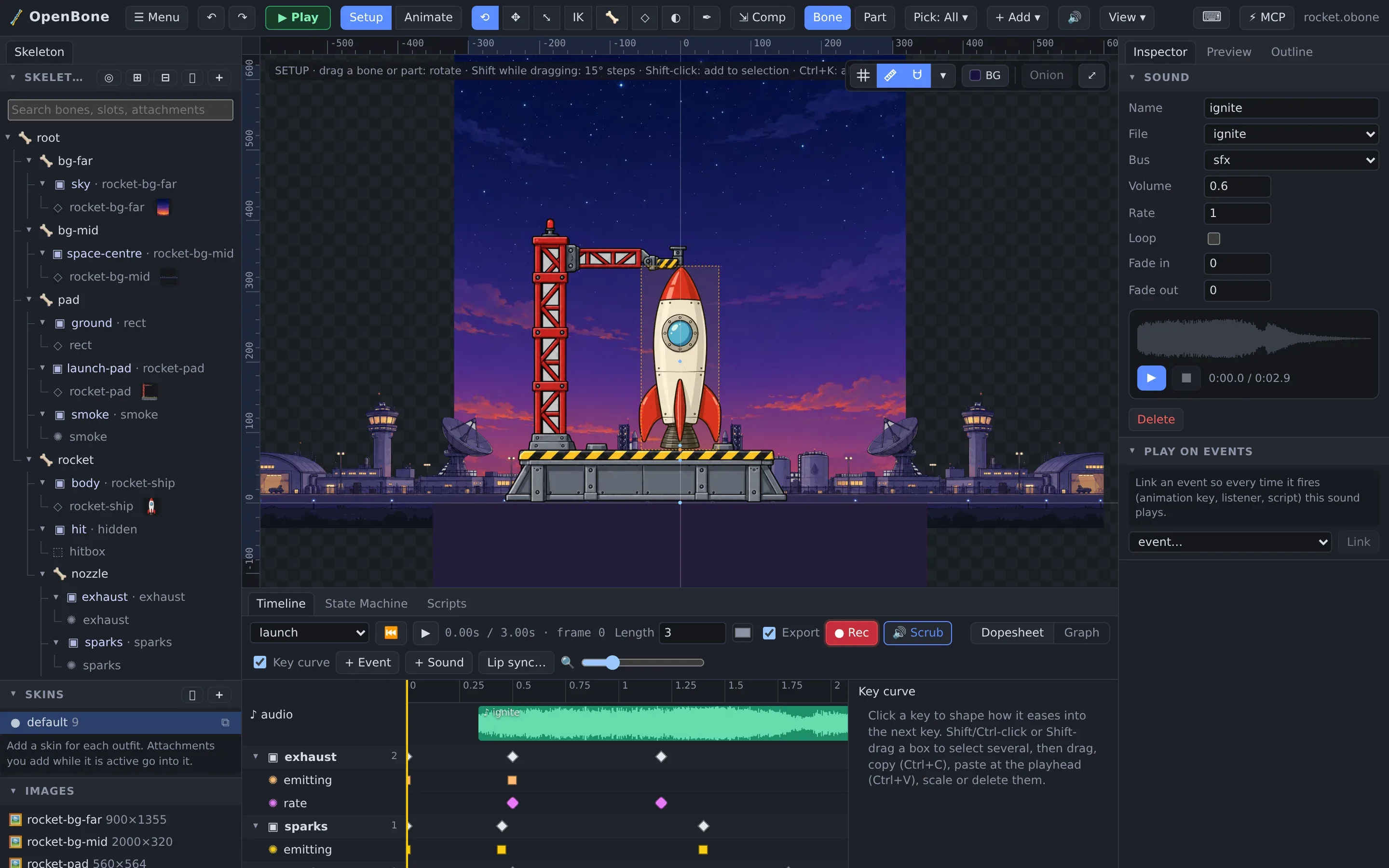
Looping sounds fade out when their state or animation ends. Scrub in the timeline plays the audio under the playhead while you drag it.
The mixer
Section titled “The mixer”Sounds go through named buses (the examples use sfx, music and ui) into the master. Each has a volume and
a mute; the final gain is master × bus × sound × key volume. Select a bus in the left panel to edit it.
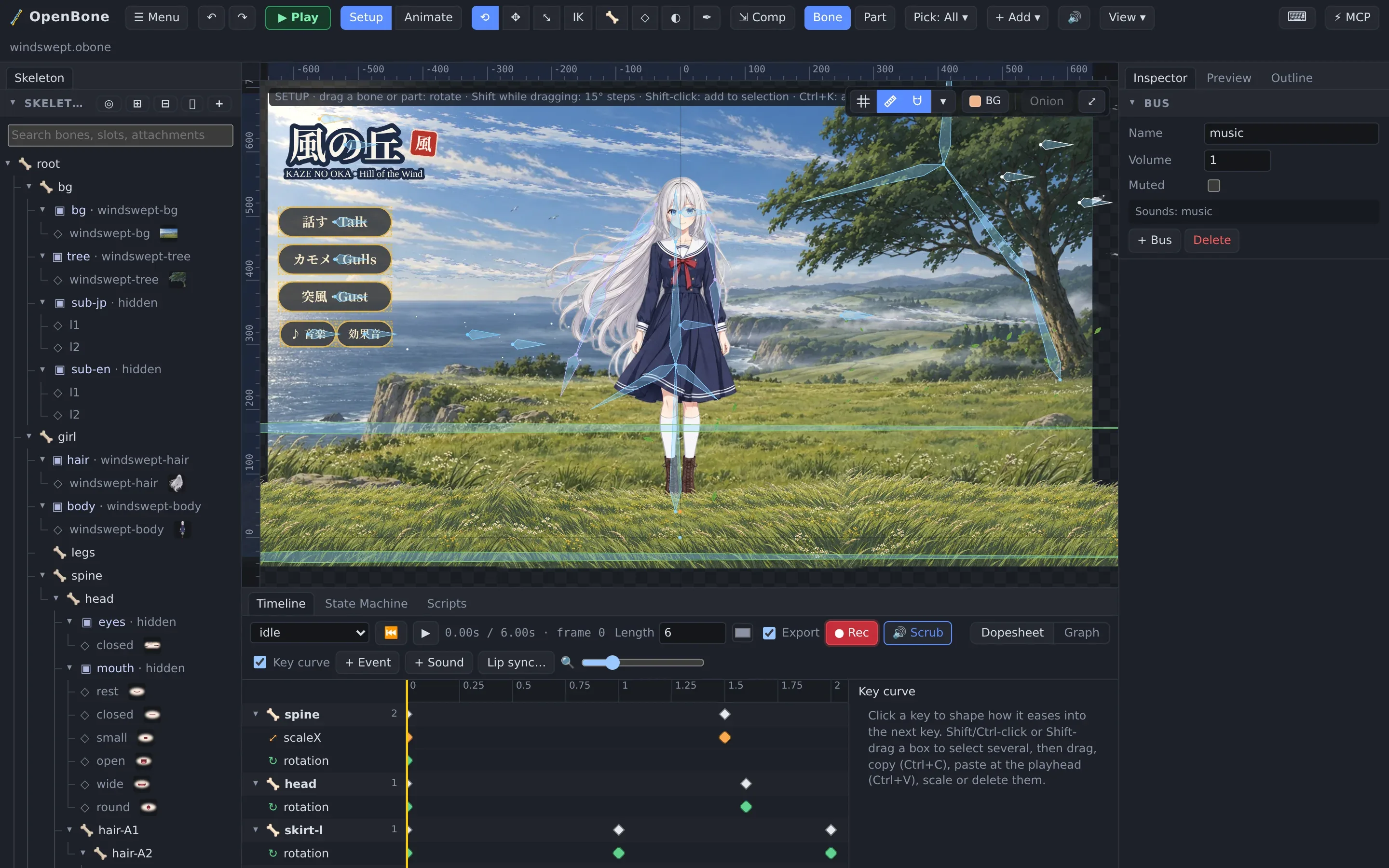
Buses can be muted from a state machine too: Windswept’s ♪ and 効果音 buttons toggle bool inputs whose states mute the music and the effects.
Lip sync
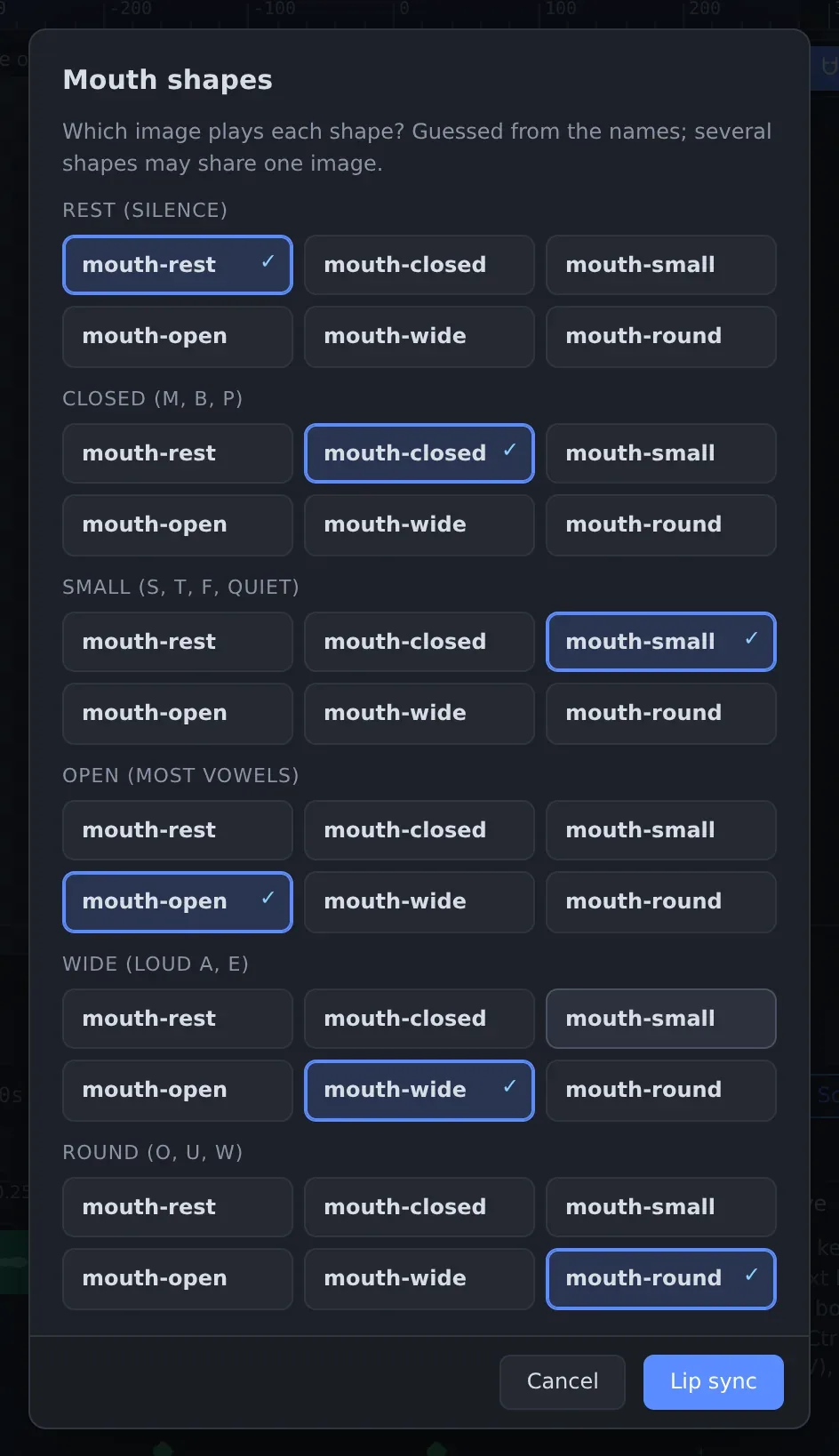
Section titled “Lip sync”Lip sync keys a mouth slot’s images to the speech in a voice recording. You need a slot with one attachment per mouth shape; OpenBone uses six: rest, closed (M, B, P), small (S, T, F, quiet), open (most vowels), wide (loud A, E) and round (O, U, W).
- In Animate mode, pick the animation and move the playhead to where the line starts.
- Press Lip sync… in the timeline. Choose the sound and the mouth slot.
- Press Next and match each shape to an image. The editor guesses from the names (
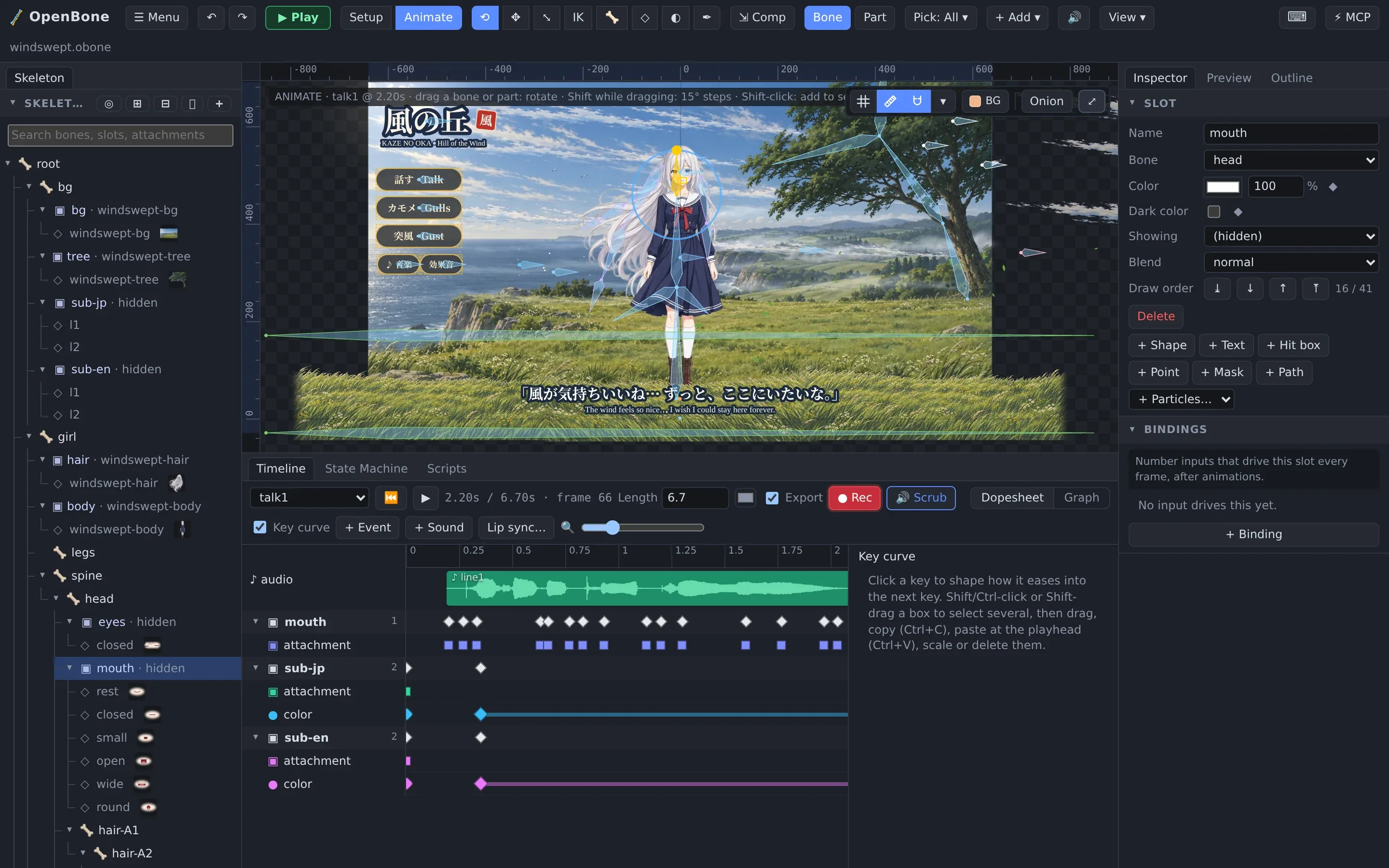
mouth-open,mouth-wide…); several shapes may share one image. - Press Lip sync. The voice is analysed and the mouth slot’s attachment is keyed through the line, with the sound keyed at the same time.
The result is ordinary keys, so you can retime or change any of them:
Video with sound
Section titled “Video with sound”The MP4, WebM, MOV and AVI exports mix every sound the animation or state-machine run plays into the video. See Exporting.
OpenBone is MIT licensed and made by UXCentury. The example art, voices and sounds are credited in the repository.